
# Jira - Atlassian Cloud
# Gifhelp
# Goal
Giffits central entrance channel for all incidents, service-, change- and feature request as well as cross-departmental tasks/issues
# How to register?
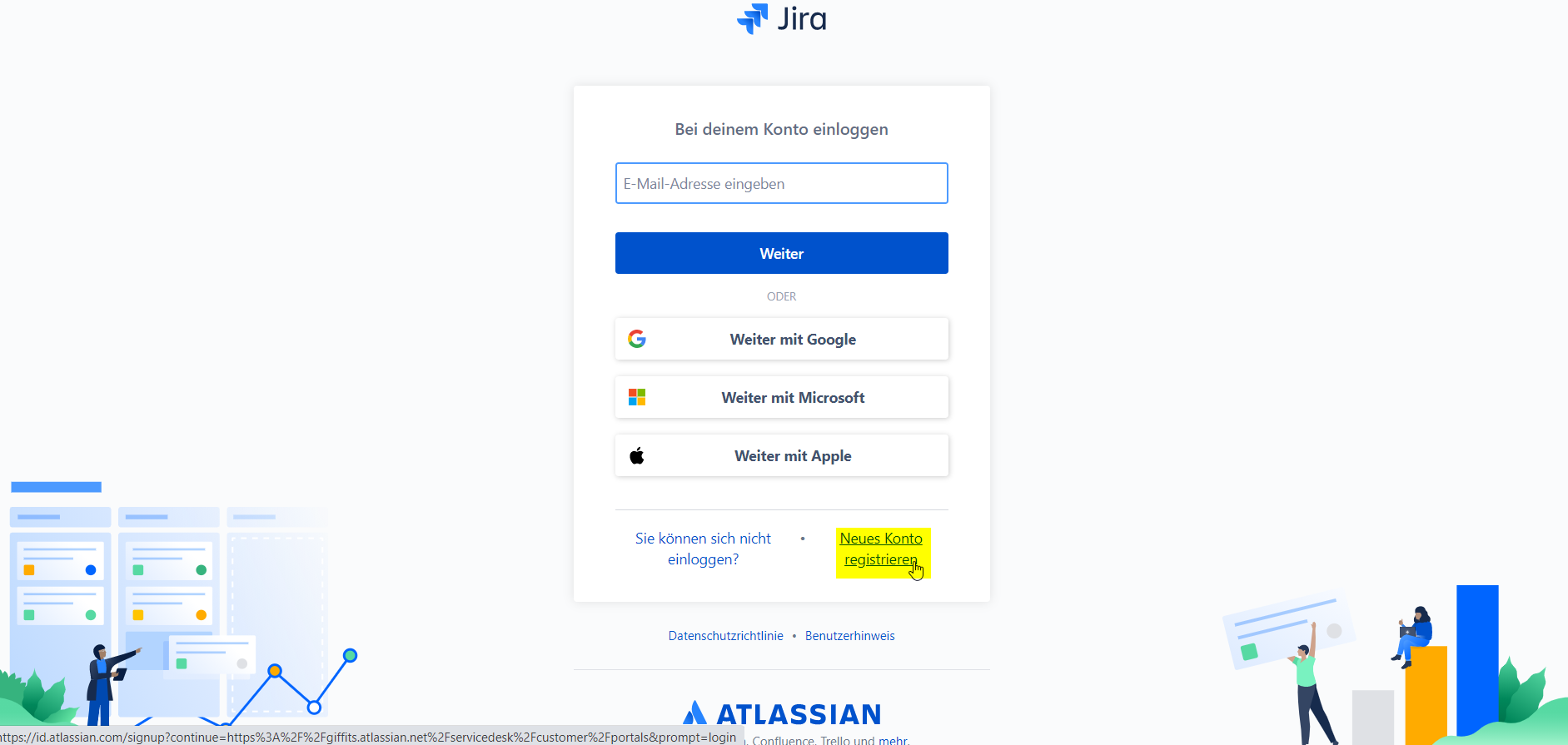
- Go to: GifHelp (opens new window)
- Press the button "Register new account"
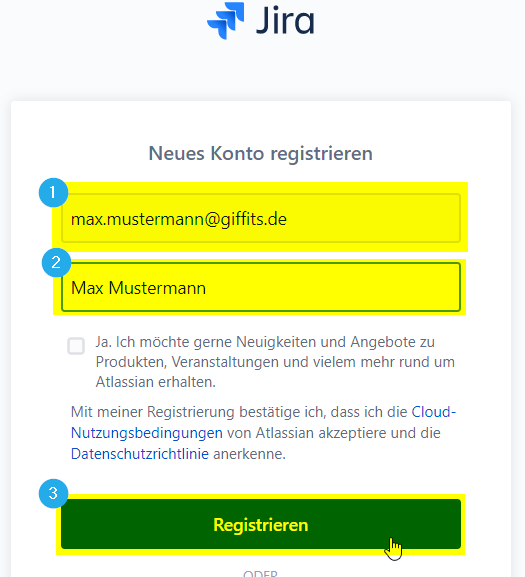
- Enter your MS-Mailadress (prename.lastname@giffits.de) and your fullname (Prename Lastname) and press the button "Register"
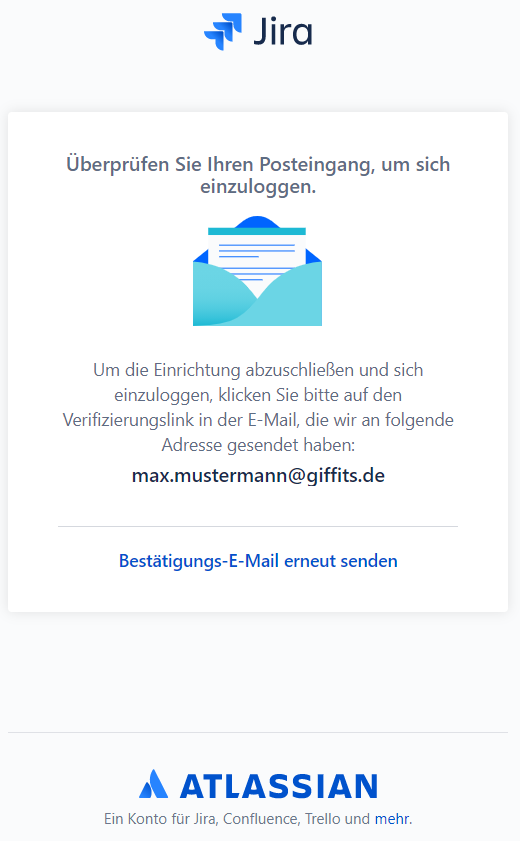
- You will receive a verificationlink via e-mail. Follow the instructions in this mail.
# How to create a ticket?
- Go to: GifHelp (opens new window)
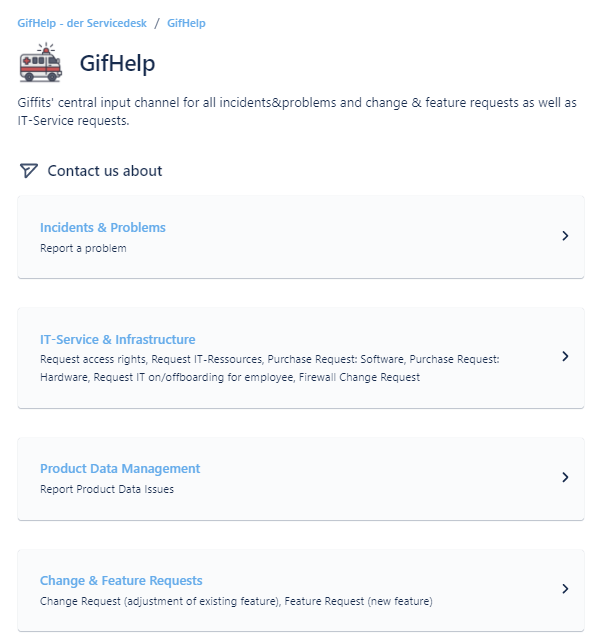
- Select the required request type
- Fill in the mandatory fields
- The more information you provide, the fewer questions there will be from ticket agents.
- Screenshots are always helpful
# Where can I find information about my ticket?
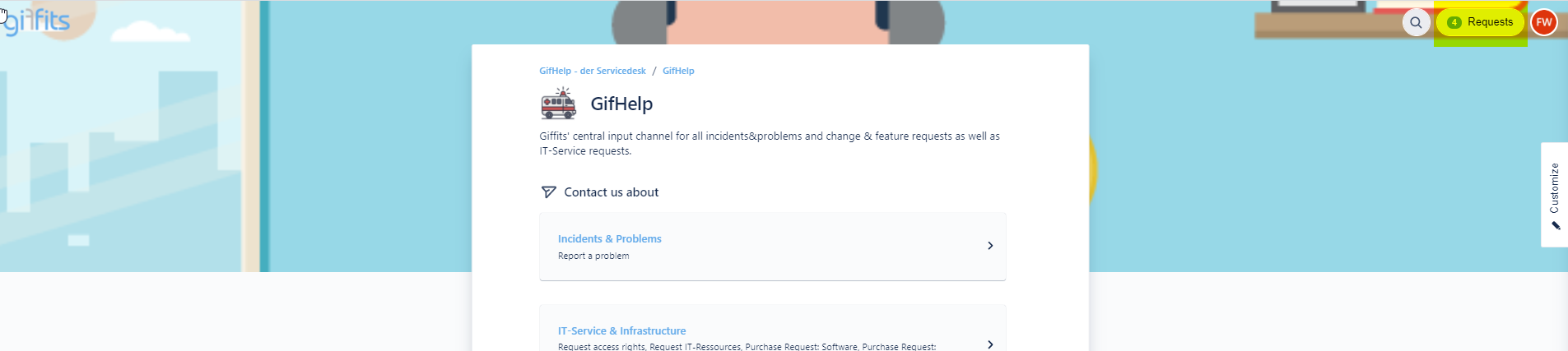
- Go to: GifHelp (opens new window)
- Click on top right
„Requests“-Button
- Check out your requests
- Set the filters or search for a specific ticket name
- Check the status
- Click on the Reference to receive further information
- Ticket-Detail-View
- See Ticket details
- Share ticket with involved colleagues
- Check comments from Support
- Add comments
- Turn notifications on/off
- Cancel your ticket

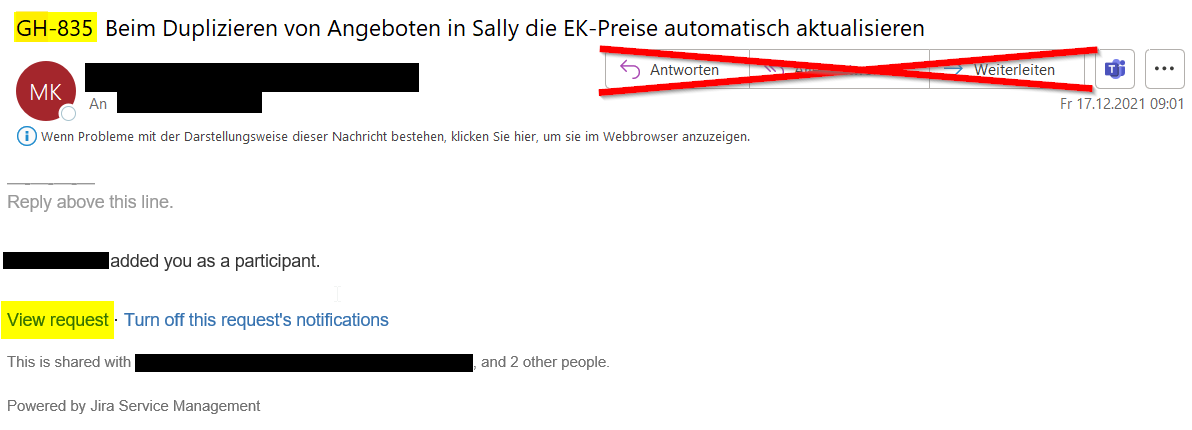
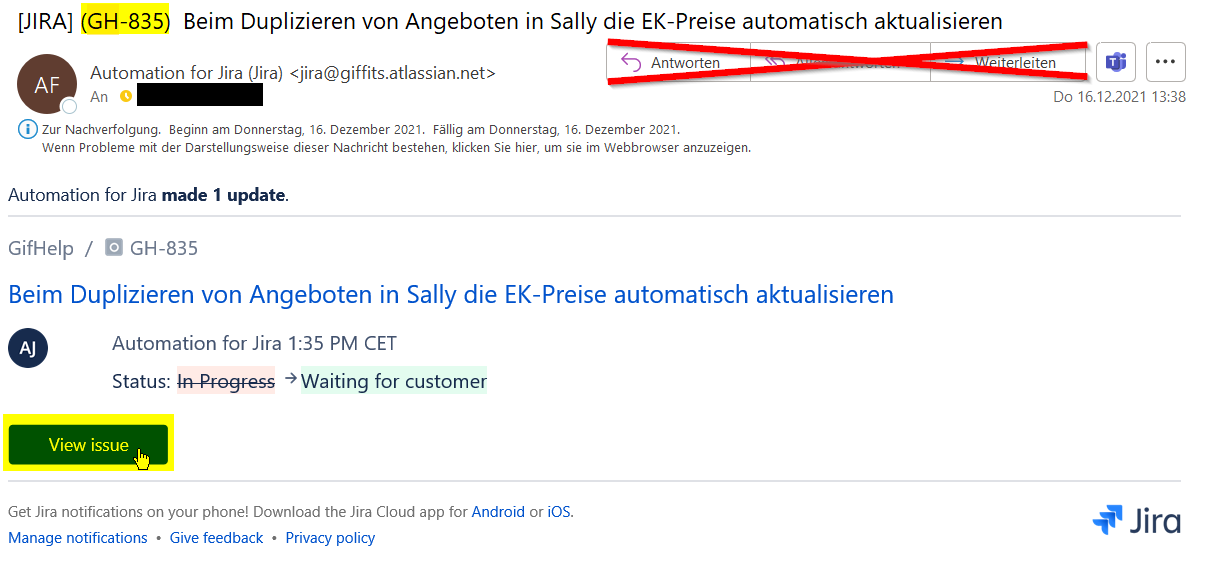
- You will receive notifications by
e-mail as well for:
- Request confirmation
- Status Update
- Comments from support
- Resolved issue
- IMPORTANT Do not reply to the mails, open the ticket and use the comment function instead
# Definition of request types
- Incidents & Problems
- Report a problem
- all incidents or problems regarding our tools or our shop should be reported here (e.g. Shop is down, GVV-logoupload is not working, tool XY is very slow, ...)
- Report a problem
- IT-Service & Infrastructure
- Request access rights
- any access rights needed? (e.g. for tools, server, folder, mailstore, ...)
- Request IT-Ressources
- any IT-ressources needed? (e.g. e-mail-inbox, domain, VM, ...)
- Purchase Request: Software
- new software or a software upgrade needed? (e.g. installation of greenshot, PoEdit, ...)
- Purchase Request: Hardware
- new hardware or an hardware upgrade needed? (e.g. new headset, mouse, ...)
- Request IT on/offboarding for employee
- IT-involved onboarding of new employees or offboarding of former employees(e.g. activation or deactivation of access rights, hand out or return IT-equipment, setup e-mail-signature(s), ...)
- Firewall Change Request
- Any firwall configurations needed?
- Request access rights
- Product Data Management
- Report product data issues
- any issues regarding product data (e.g. wrong article or print prices, missing translations, wrong printing areas/types)
- Report product data issues
- Change & Feature Requests
- Change Request
- adjustment/change of existing feature/tool (e.g. change the structure of table XY, adjust the shoptemplate YZ, ... )
- Feature Request
- new feature needed? (e.g. aut. invoice processing of elec. invoices from getmyinvoices, ...)
- Change Request
# Definition of urgency and impact
- Urgency
- low = Inconvenient, but functional
- medium = Work functions impaired, work around in place
- high = Employee or client can't perform primary work functions
- critical = Complete system or service is down
- Impact
- Minor/Localized = Single person or single client affected
- Moderate/Limited = Several colleagues or several clients affected
- Significant/Large = Department-wide or a single shop affected
- Extensive/Widespread = Company-wide or several shops affecte
# Definiton of ticket status in Gifhelp
- Priority Triage
- This ticket is open
- Aut. calculation of priority based on severity
- 1st/2nd Level Support
- The ticket is open
- 1st + 2nd Level Support will take care about it
- Order depends on the priority and the creation date
- 3rd Level Support
- Linked issue created
- Deeper investigation by specialists is needed
- 3rd Level Support will take care about it
- Order depends on the priority and the creation date
- Pending
- The ticket is open / in progress / blocked
- Missing/unclear information. Input by stakeholder/reporter needed.
- Work in Progress
- The ticket is in progress
- A team member is currently working on the ticket.
- Blocked
- The ticket is blocked due to critical tickets
- Will be proceeded after finishing the critical ticket
- Review
- Review Internal
- IT internal code review is needed
- Review External
- Review by stakeholder/reporter is needed
- Review Internal
- Done
- The ticket got resolved
# Definition of ticket resolutions in GifHelp
- Done
- Resolved issue
- Declined
- This issue was not approved.
- Ticket was rejected due to lack of information
- Cannot reproduce
- All attempts at reproducing this issue failed, or not enough information was available to reproduce the issue. Reading the code produces no clues as to why this behavior would occur. If more information appears later, please reopen the issue.
- Duplicate
- The problem is a duplicate of an existing issue. Additional information has been transferred to the existing ticket (see linked issues).
- Won't do
- This issue won't be actioned. Requirements won't generate any value or don't fit to the company objectives
# Jira Service Management - 1st & 2nd Level Support
# How to get access to Jira Service Management
- Go to: Jira SM (opens new window)
- Please log in with your Microsoft 365 credentials via the „Weiter mit Microsoft“ button.
- Jira Licence required!
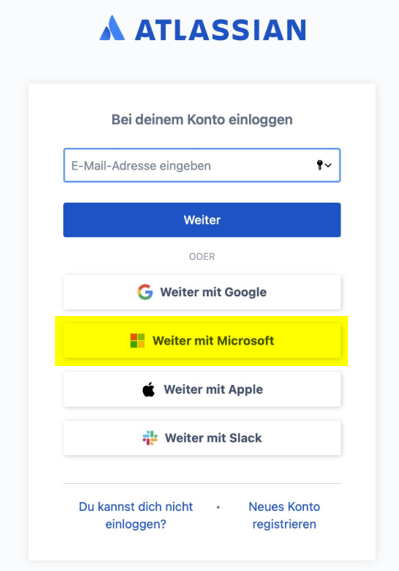
- You will receive a verification code by email, if you login the first time
- Please follow the instructions
# How is the Jira Service Management board structured?
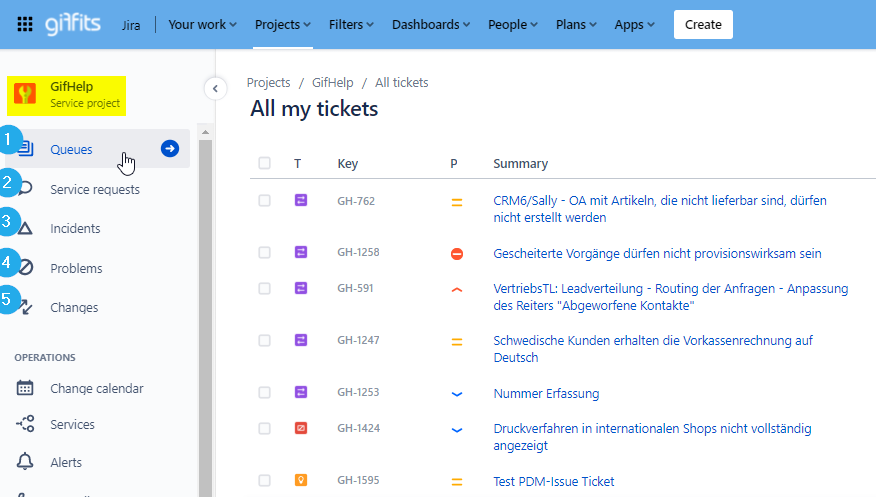
On the left side you can choose the required request type or a predefined queue
# Name Description 1 Queues Can be defined for each team or team member, by status or other ticket conditions. Feel free to ask the Jira Admin for support 2 Service requests Displays all „IT-Service & Infrastructure“ tickets 3 Incidents Displays all „Incidents & Problems“ tickets 4 Problems Displays all „Product Data Issue“ tickets 5 Changes Displays all „Change & Feature Requests“ tickets
# How to read a ticket?
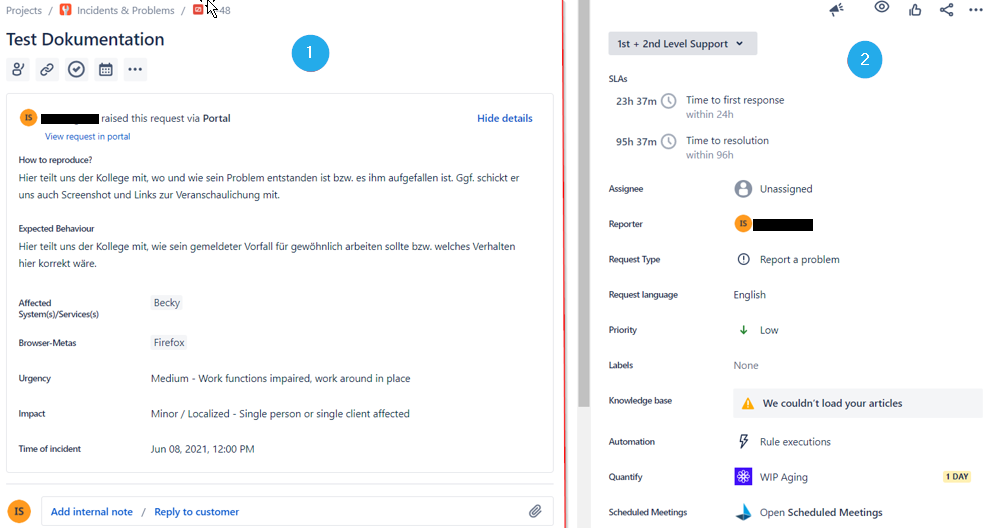
- On the left side (No. 1) you will find all the mandatory content information that the reporter has given us about the reported issue.
- On the right side (No. 2) you can find information about the status of the ticket, the SLAs (for Incidents only), the assignee, the priority, etc.
# How to work on a ticket?
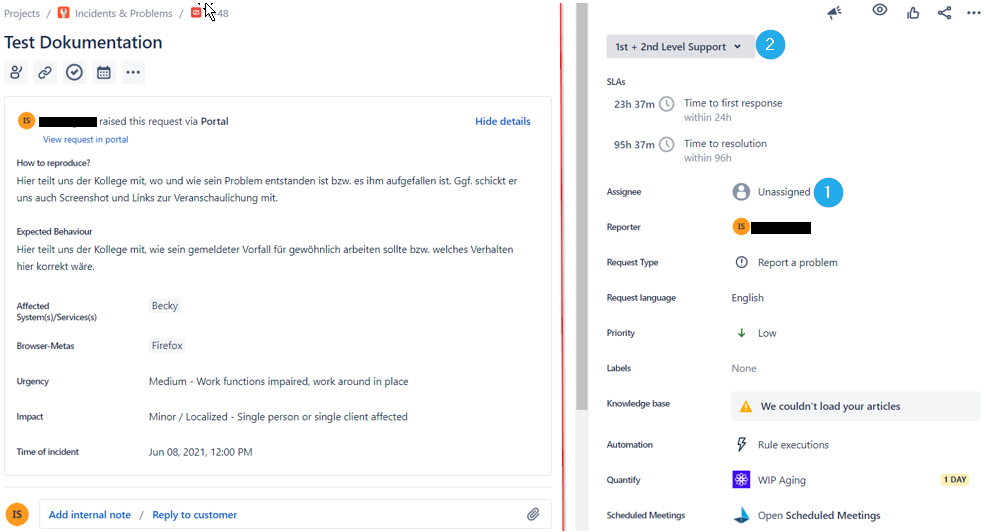
- As soon as I start working on a ticket, I enter myself as the assignee (1).
- In the next step, I adjust the status (2) according to my editing.
# How to create a related ticket for 3rd level support?
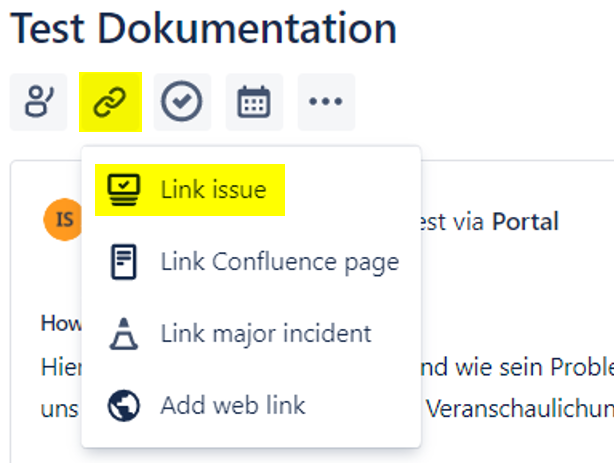
If you want to create a ticket for 3rd level support, click on the anchor icon
Link issue at the top of the bar.
After that you will get to the "Linked Issue" section.
Press „+ Create linked issue“
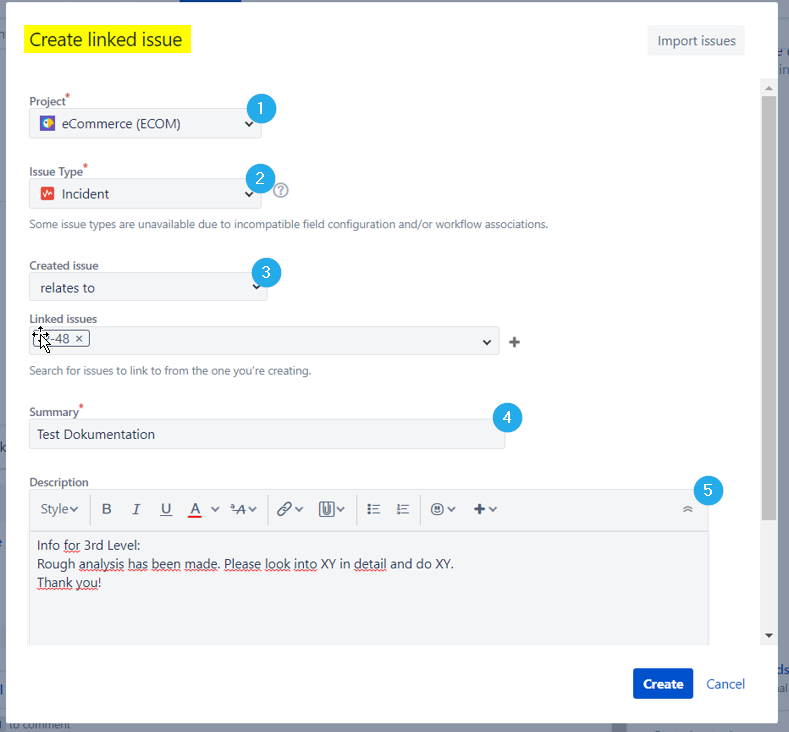
A new window „Create linked issue“ will appear
Project: Select the project team that should take care of the ticket
# Name Description 1 APOP: Application Operations Responsible for SAP and the „old tool world“ (Sally, Muster, Import…) 2 DIGA: Digital Agency Responsible for the „new tool world“ (Marketing Suite, …) 3 ECOM: eCommerce Responsible for the „old tool world“ (Becky, GVV,…) and the shop 4 PDMA: Product Data Management Responsible for all product data information 5 SEIN: IT Service & Infrastructure Responsible for the network setup, server infrastructure, … Issue Type: Select the appropriate issue type
- Most likely, you need to select Incident or Story
# Name Description 1 Incident Incident is an unplanned interruption. When the operational status of any activity turns from working to failed and causes the system to behave in an unplanned manner it is an incident. A problem can cause more than one incidents which are to be resolved, preferably as soon as possible. 2 Story Stories track functionality or features expressed as user goals, which have incremental value for the customer. A story is often written using a standard format such as "As a , I want so that ." 3 Task Task - involves work on something not directly related to implementing a feature but should be done. 4 Sub-tasks A small piece of work that's part of a larger task. 5 Theme Themes are large focus areas that affect the entire organization. 4 Initiative Initiatives are a group of Epics that share a common goal. 4 Epic An epic captures a large body of work. It is essentially a large user story that can be broken down into a number of smaller stories. 5 Bug Bug is developer’s terminology. Once a defect found by a tester is accepted by developer it is called a bug. The process of rectifying all bugs in the system is called Bug-Fixing. Created Issue: Select the appropriate relation – most likely „related to“
Summary: Translate the summary to English
Description: Add additional information to the 3rd level support (optional)
- e.g. what you have already identified in the analysis and which doings are still open.
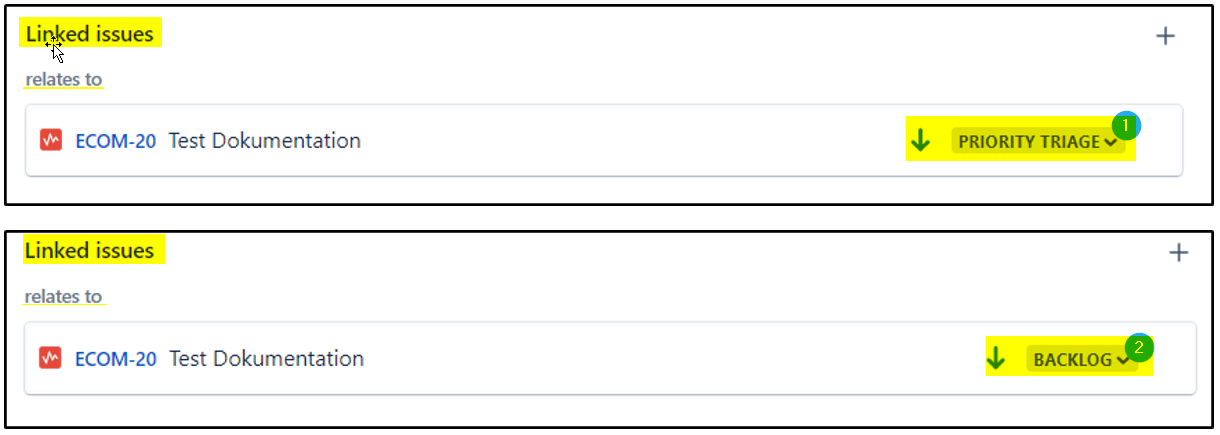
- Attention: Please always write these information in English to the 3rd level!As soon as the ticket has been created, you will see the related ticket with the status "Priority Triage". Here, an automatism is triggered that decides whether the ticket goes directly to the Next column in the 3rd level team or whether it first ends up in the Backlog. A short time later the status changes automatically according to the condition rules
Finally, you have to change the status to "3rd Level Support" in the drop-down menu at the top right. Here, too, a new screen appears, which only needs to be confirmed.
On the ticket overview, you can now see that the ticket is at the 3rd level support and a related ticket has been created for the ECOM team for it.


# What happens with a related ticket of the 3rd level?
- Depending on the priority (based on urgency and impact or value) the created 3rd level support tickets will be replenished within the project team
- In case the 3rd level needs any information in order to complete the task from the stakeholder, they will move the ticket to the appropriate status on their board and the GH-ticketstatus will change to "3rd level pending" or "Waiting for customer" (depending on the request type)
- In this moment, the 1st & 2nd Level support need to check the comment in the related ticket and need to forward the question or task to the reporter of the original (GH)ticket.
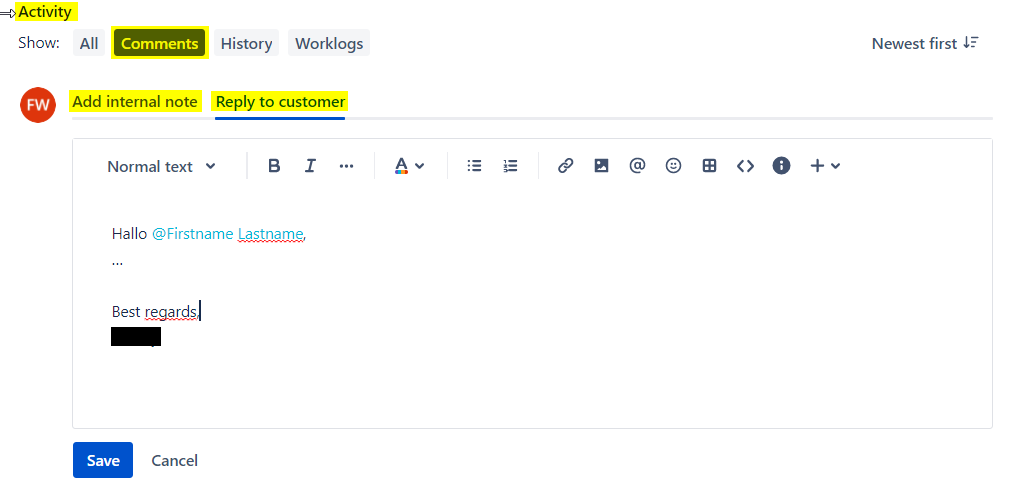
- Make sure to to use the correct comment function and mention the receiver of your note with the "@ firstname lastname" funtion.
- Use the "Add internal note" function if you want to give your 1st+2nd colleagues a note about the ticket etc
- Use the "Reply to customer" function if you have a query for the reporter. For example, if required information are missing.
- The internal comments are marked in yellow and the external comments in white.
- Make sure to to use the correct comment function and mention the receiver of your note with the "@ firstname lastname" funtion.
- As soon as the reporter is providing the required info, the 1st & 2nd level support need to forward the information to the related 3rd level ticket and change the GH ticketstatus manually back to "3rd level support"
- In this moment, the 1st & 2nd Level support need to check the comment in the related ticket and need to forward the question or task to the reporter of the original (GH)ticket.
- As soon as the 3rd level finished all related subtasks, the status of the GH-ticket will automatically change to "3rd Level Done" and the reporter and the request participants are receiving an e-mail notification.
# How to move tickets within the 1st & 2nd level support?
- In case, the reporter created a wrong request type, you can reject the ticket (with a comment to the reporter) or you move the ticket to the correct request type within Gifhelp
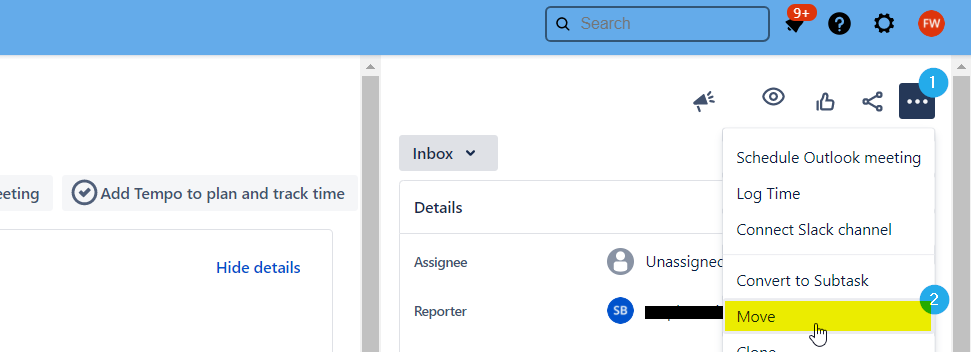
- Open the ticket
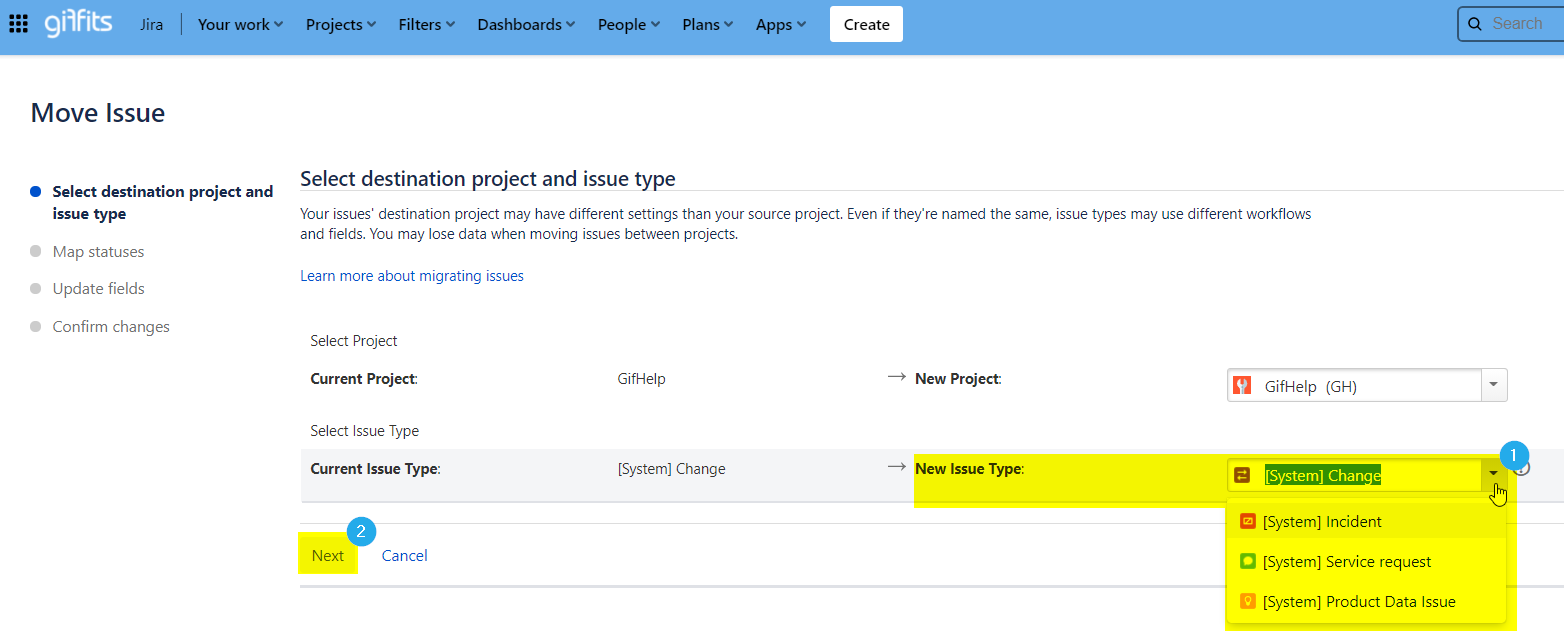
- Press the three points on the top right and press „Move“
- Select the appropriate project and issue type and continue with Next
- Follow the next steps and select the appropriate status, update required fields and confirm the changes
- Jira is migrating the ticket
- Press „Acknowledge“ and you will return to the ticket.
# How to deal with duplicates?
- Duplicates should be detected and processed in 1st+2nd level support. One ticket should be kept in the process and all others should be closed and linked to the initial ticket.
- To link the duplicate ticket to the initial ticket, click the anchor icon again in the upper left corner. Select "duplicates" in the drop-down and find the initial ticket you want to link to in the drop-down on the right
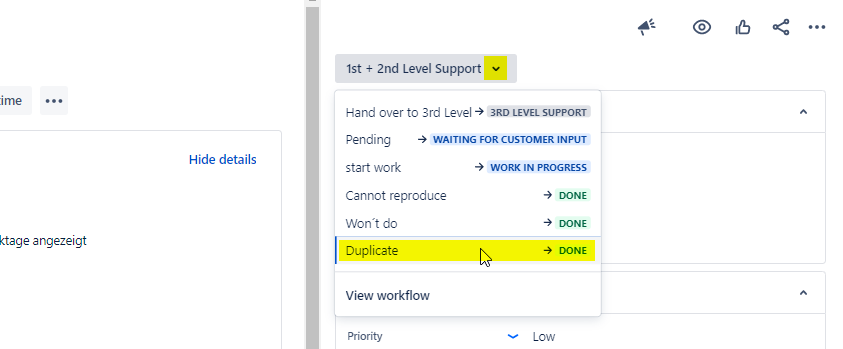
- Now you need to adjust the status of the ticket. To close the ticket, it is important that you click "Duplicate"->"Done". This way it is possible to see later for which reasons the ticket was closed.
- In the initial ticket you will see the duplicates.


# How to log your times
- Tempo is not used for individual performance measurement
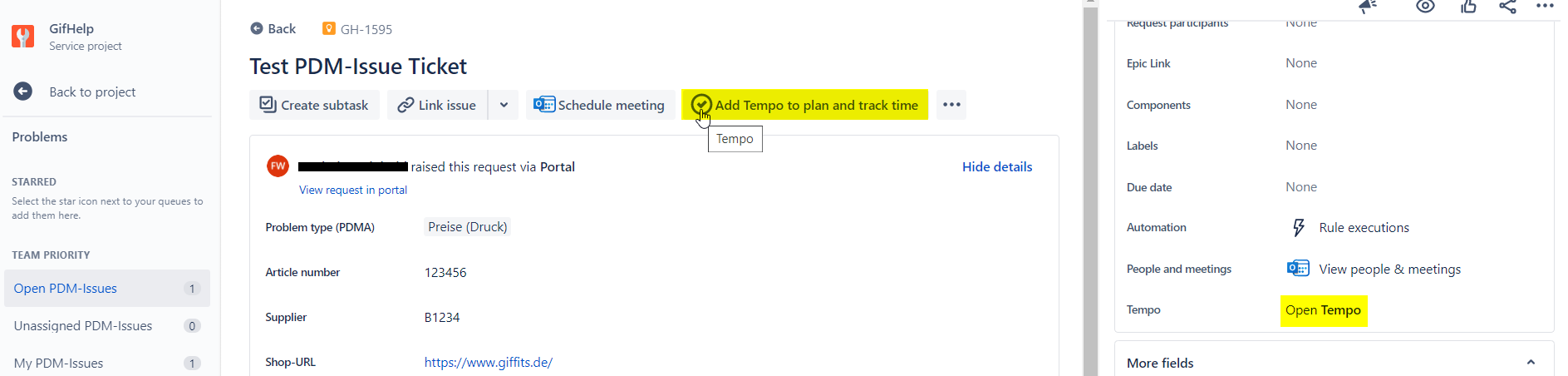
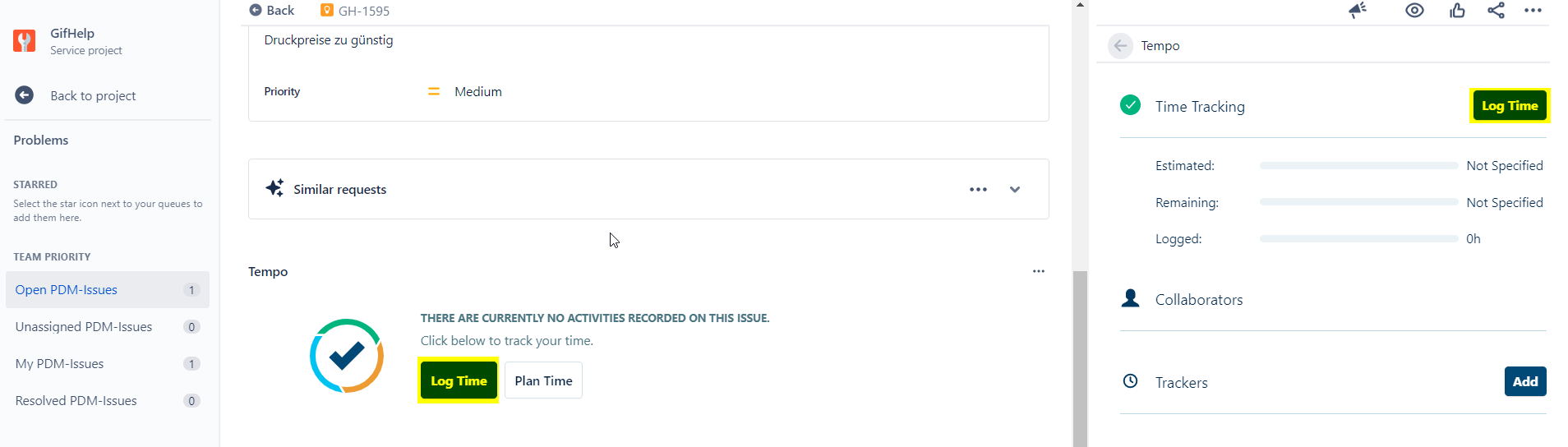
- Open Tempo in the ticket details or in the top bar with the "checkmark Tempo" button
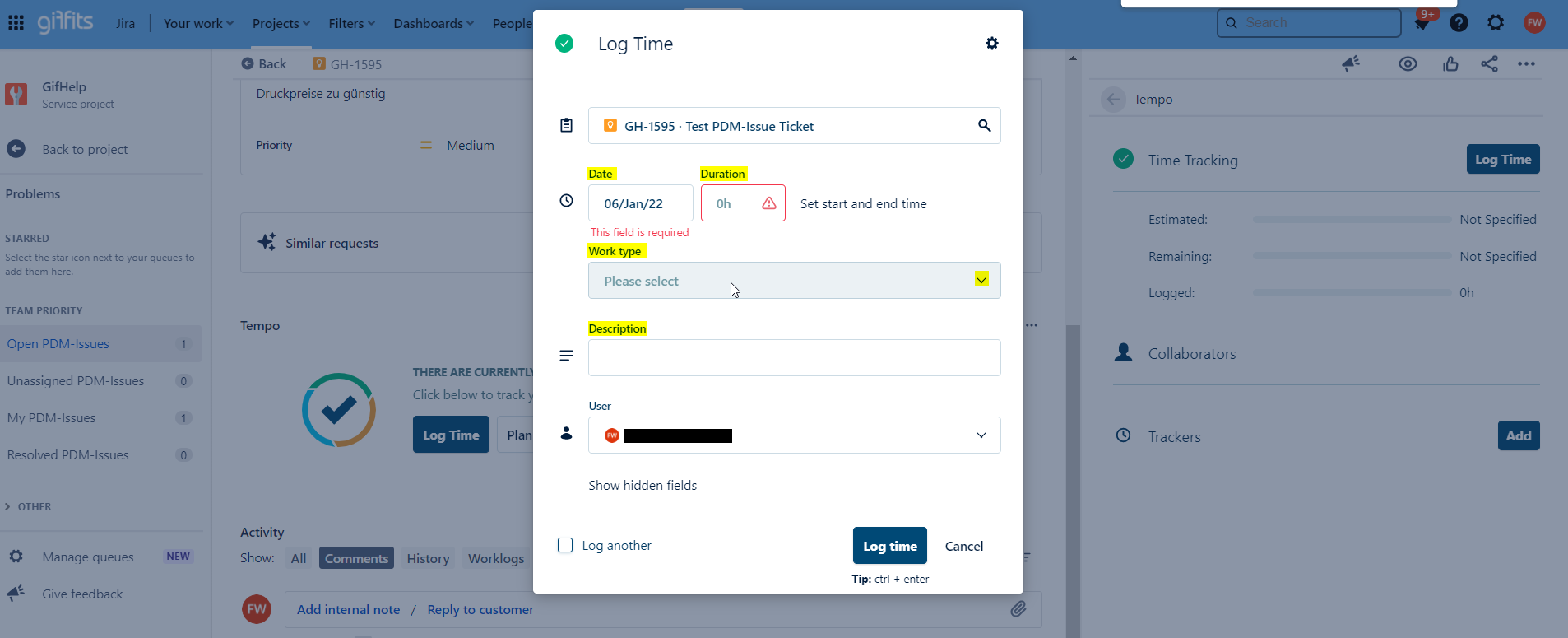
- Press the „Log Time“-button
- Type in the duration time and select a work type. The description is optional.
- New work types needed? Please get in touch with your Jira Admins.
.
.
.
Success!